Notifications
Notifications keep you informed about what's happening across your account. They appear in two places: as banners at the top of the app for anything urgent, and in the notification drawer (the bell icon in the top-right corner) for everything else. This article walks through how they work, what each type means, and how to manage them.
The notification drawer
Click the bell icon in the top-right corner of the app to open your notification drawer. This is where every notification you receive will live, organized so the most urgent items appear at the top.
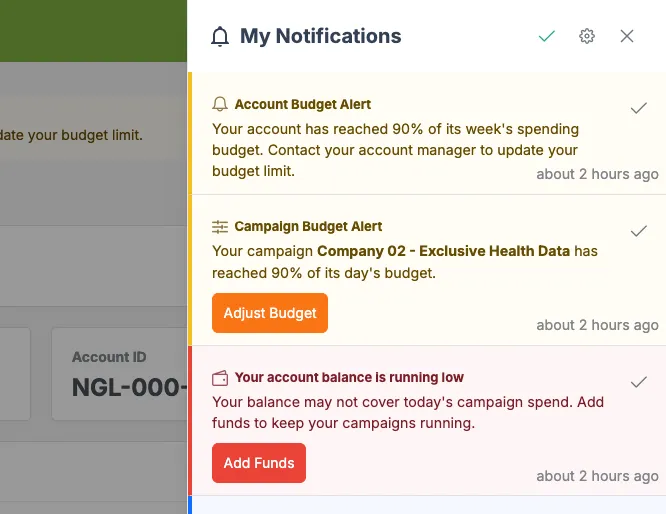
Each notification includes:
- A title and short description of what's happening
- A button that takes you directly to where you can resolve or learn more about the notification
- A timestamp showing when it was sent
- A checkmark on the right that lets you mark it as read
You can also use the checkmark at the top of the drawer to mark all as read and clear everything at once. Read notifications stay in the drawer, so you can always go back and reference them.
Notification types
Notifications are color-coded by urgency so you can tell at a glance what needs your attention.
Critical alerts (red)
These are reserved for issues that could impact your campaigns, like a low balance, a failed payment, or a campaign that's been paused. Critical alerts also appear as a persistent red banner at the top of key areas of the app until resolved.

When you resolve the issue (for example, by adding funds or updating your payment method), the banner will clear next time the page loads.
Action needed (yellow)
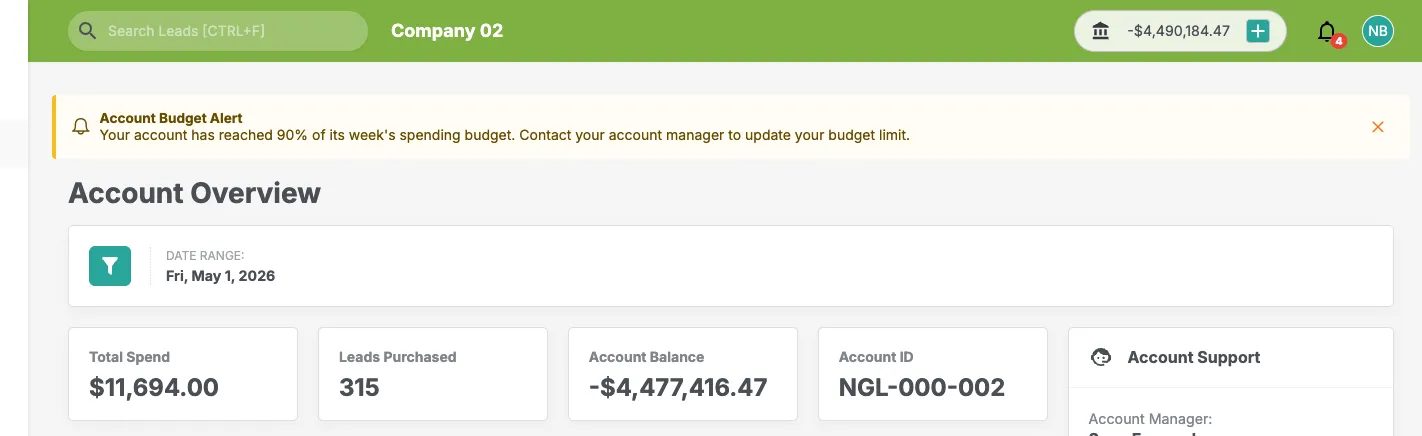
These cover things that need your attention soon but aren't immediately blocking your campaigns. Daily budget warnings are a common example: you'll see one when a campaign reaches 90% of its daily budget.
Action needed alerts also appear as a yellow banner at the top of the app, dismissible by clicking the X icon.
Informational (blue)
These are updates that are useful to know but don't require any action. Examples include a notification when a CSV report you requested is ready to download.
Promotional (green)
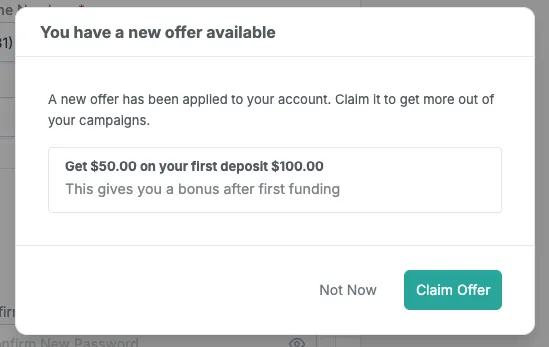
When a new offer is added to your account or there's a seasonal campaign opportunity available, you'll see a popup when you log into the app. You'll also see the promotional notification in your drawer so you can come back to it later.
Managing your notification preferences
You can control which notifications you receive in-app by going to your Profile Settings > Notifications.
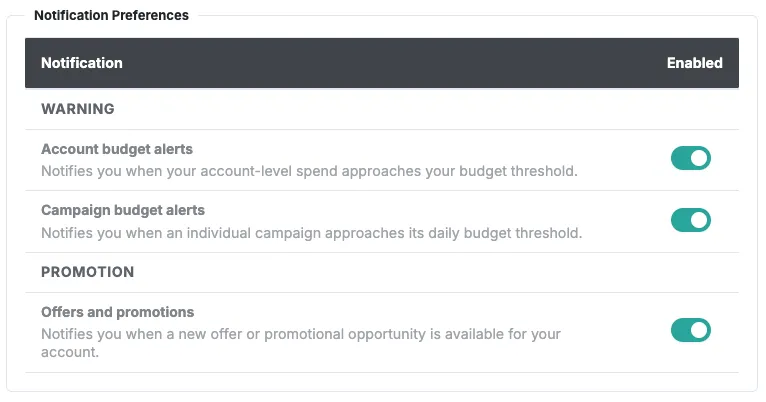
Each notification type has its own toggle. Turn them on or off based on what's useful for you. Click Save when you're done to apply your changes.
Critical alerts are not able to be opted out of at this time, as they prevent your campaigns from running successfully and require immediate action. These cover things like payment issues or campaign pauses, and missing one of these could lead to interrupted campaigns or lost spend.
Email notifications
Email notifications aren't connected to this new system yet. If you currently receive certain emails from NextGen Leads, you'll continue to receive them through the existing process. We'll be adding email controls to the Notification Preferences page in a future phase.
Need help?
If you have questions about a specific notification or aren't sure what action to take, reach out to your account manager or contact support at [email protected].